

The notifications feature in Microsoft Edge allows websites to display pop-up information even when you’re not on the site. While this may be useful, it also enables scammers to create fake notifications to part you from your money. A typical scam notification warns you of a virus on your computer in order to get you to call a bogus support company or buy ‘antivirus’ software.
To avoid the hassle, here’s how to stop scam notifications in Microsoft Edge.
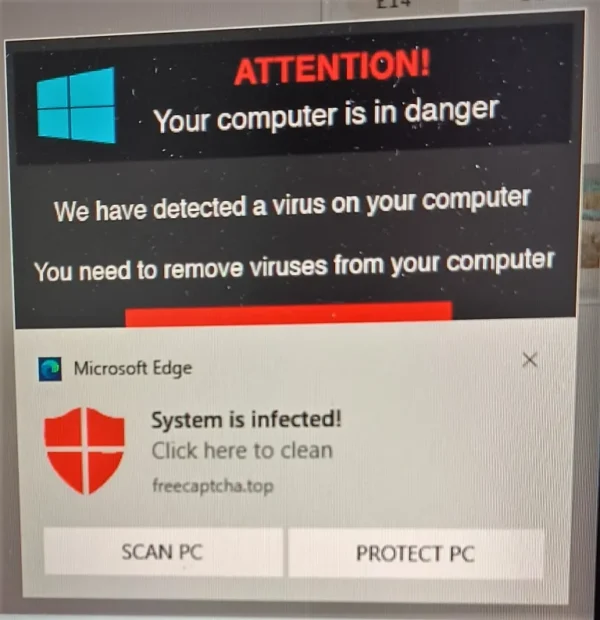
What do Edge notifications look like?
The best thing to do is to turn off notifications altogether, as explained later in this article. However, as Microsoft sometimes turns them back on after an Edge update, it’s worth keeping your eyes peeled for the box that initially offers them. This box usually appears at the top of Edge, just below the address bar. If you see one, click on Block. It’s possible you may want notifications from a certain website, but I haven’t found a useful one yet, so blocking them is the safest option.
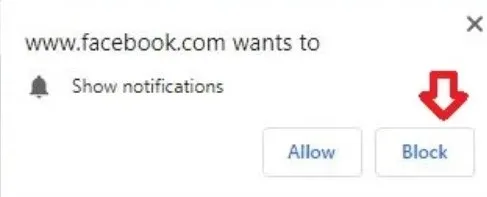
How to stop notifications in Microsoft Edge
If you’re already suffering these scam notifications, then you can stop them. To do so, open the Edge browser and click on the three vertical dots in the top right corner.

Clicking the three dots brings up a selection of menu options. From that menu, select Settings.
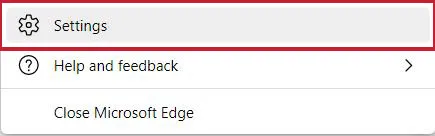
The Edge settings page should now appear. When it does, type notifications into the search box at the top of the left-hand menu.

In the search results on the right-hand pane of the settings page, you should now find the notification option highlighted in yellow. Click on this option to continue.

To stop you receiving further offers to allow notifications from websites, click on the blue toggle switch to the right of Ask before sending.

Once you’ve flipped the switch, you shouldn’t receive any more offers to allow notifications. However, as already mentioned, be aware this may get turned back on after an Edge update.

How do I block allowed notifications?
If you’re already receiving unwanted notifications, you can block or remove the websites that are sending them. To do this, click the three vertical dots to the right of any websites listed under the Allow to send notifications heading. From the menu that appears, either click Block or Remove. Unless you’re certain you want notifications from a certain website, it’s best to block them all and enjoy a more uninterrupted browsing experience.
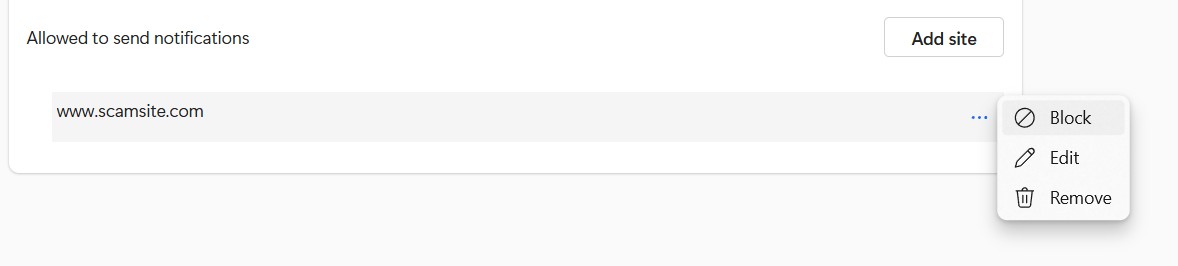
These unwanted notifications can also occur when using the Google Chrome web browser. Check out this article on how to stop notifications in Chrome if you’re bothered by them.